OpenCVVersions: Difference between revisions
Jump to navigation
Jump to search
No edit summary |
|||
| Line 7: | Line 7: | ||
# Choose a home directory as installation location home directory as shown below, where "username" is the actual username. | # Choose a home directory as installation location home directory as shown below, where "username" is the actual username. | ||
# Click extract, to install OpenCV files | # Click extract, to install OpenCV files | ||
#* [[File: Install_location.png|400px]] | #* [[File: Install_location.png|400px|alt="Screenshot of app showing indicated button"]] | ||
#** Click to enlarge | #** Click to enlarge | ||
==== Without CUDA ==== | ==== Without CUDA ==== | ||
Latest revision as of 13:53, 7 April 2026
Windows
These directions are for 64-bit systems.
First, we install OpenCV
- Download the desired version of OpenCV from here
- Double click the downloaded executable to install, and select
runat the prompt - Choose a home directory as installation location home directory as shown below, where "username" is the actual username.
- Click extract, to install OpenCV files
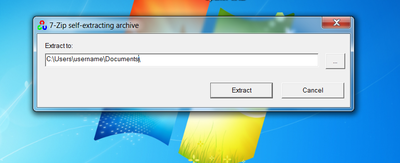
- Click to enlarge

Without CUDA
-
The path to the folder you extracted is from here on refered to as {OPENCV}
Next, we setup environmental variables
- Navigate to
Control Panel->System and Security->System - Select
Advanced system settingsfrom the sidebar - In the
Advancedtab click theEnvironment Variables...button - Check if a Variable called
Pathexists in the list of user variables (the top variables)- If it exists, click edit to edit the variable, and add a semicolon, then the following to the end of the Path value
{OPENCV}\build\x64\vc10\bin - If it does not, press the New button and set the variable name to
Pathand the value to the path to your opencv directory ({OPENCV})
- If it exists, click edit to edit the variable, and add a semicolon, then the following to the end of the Path value
Visual Studio Project Set-Up
- Go to Project -> Properties
- Configuration Properties -> C/C++ -> General
- Additional Include Directories...add: '{OPENCV}\build\include;'
- Configuration Properties -> VC++ Directories
- Executable Directories...add: '{OPENCV}\build\x64\vc10\bin;'
- Library Directories...add: '{OPENCV}\build\x64\vc10\lib;{OPENCV}\build\x64\vc10\staticlib;'
- Configuration Properties -> C/C++ -> General
More Information
- For using OpenCV with Visual Studio; https://docs.opencv.org/2.4/doc/tutorials/introduction/windows_install/windows_install.html#windows-installation
- For using OpenCV with CUDA; https://blog.cuvilib.com/2011/03/22/how-to-build-opencv-2-2-with-gpu-cuda-on-windows-7/