R: Difference between revisions
Jump to navigation
Jump to search
| (3 intermediate revisions by the same user not shown) | |||
| Line 10: | Line 10: | ||
#*[[Image:R_Install_1.PNG|alt="Screenshot of R installer"]] | #*[[Image:R_Install_1.PNG|alt="Screenshot of R installer"]] | ||
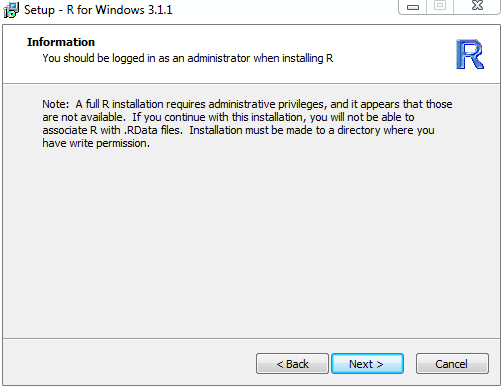
#*Note: There will be a warning when you start the installer that says the full installation requires administrative privileges, disregard this message. | #*Note: There will be a warning when you start the installer that says the full installation requires administrative privileges, disregard this message. | ||
#*[[Image:R_Install_2.PNG|alt=" | #*[[Image:R_Install_2.PNG|alt="Screenshot of indicated message"]] | ||
#Accept the License Agreement and continue. | #Accept the License Agreement and continue. | ||
#*[[Image:R_Install_3.PNG|alt=" | #*[[Image:R_Install_3.PNG|alt="Screenshot of indicated message"]] | ||
#When prompted, choose an installation folder wherever you would like it within your home directory. | #When prompted, choose an installation folder wherever you would like it within your home directory. | ||
#*[[Image:R_Install_4.PNG|alt=" | #*[[Image:R_Install_4.PNG|alt="Screenshot of indicated message"]] | ||
#Select the components that you wish to install, the defaults for this is fine. | #Select the components that you wish to install, the defaults for this is fine. | ||
#*[[Image:R_Install_5.PNG|alt=" | #*[[Image:R_Install_5.PNG|alt="Screenshot of indicated page"]] | ||
#If you wish to customize the options for the startup environment then click Yes when prompted and proceed to the below section. If you are unsure what these are, select "No" (can still be changed later). | #If you wish to customize the options for the startup environment then click Yes when prompted and proceed to the below section. If you are unsure what these are, select "No" (can still be changed later). | ||
#*[[Image:R_Install_6.PNG|alt=" | #*[[Image:R_Install_6.PNG|alt="Screenshot of indicated options"]] | ||
==Customized Options== | ==Customized Options== | ||
#Name the folder that will appear in the start menu. The default "R" is acceptable for this. | #Name the folder that will appear in the start menu. The default "R" is acceptable for this. | ||
#*[[Image:R_Install_10.PNG|alt=" | #*[[Image:R_Install_10.PNG|alt="Screenshot of indicated menu"]] | ||
#Finalize your installation options and hit Next to begin the installation. | #Finalize your installation options and hit Next to begin the installation. | ||
#*[[Image:R_Install_11.PNG|alt=" | #*[[Image:R_Install_11.PNG|alt="Screenshot of indicated menu"]] | ||
#After stepping through the dialog, R will install itself to the folder you specified. | #After stepping through the dialog, R will install itself to the folder you specified. | ||
#Finish and close the setup. R is now installed locally on your account. | #Finish and close the setup. R is now installed locally on your account. | ||
#*[[Image:R_Install_12.PNG|alt=" | #*[[Image:R_Install_12.PNG|alt="Screenshot of indicated message"]] | ||
==Customized Startup Environment== | ==Customized Startup Environment== | ||
#From the customized startup environment options prompt, if you wish to go through the customized startup environment dialog, select "Yes" here. Any of these options can be altered at a later time after installation if you decide you have a change in preference. | #From the customized startup environment options prompt, if you wish to go through the customized startup environment dialog, select "Yes" here. Any of these options can be altered at a later time after installation if you decide you have a change in preference. | ||
#*[[Image:R_Install_6.PNG]] | #*[[Image:R_Install_6.PNG|alt="Screenshot of indicated options page"]] | ||
#The first prompt will determine which interface you wish to use. MDI (one main window for all R programs) or SDI (separate windows for each R program) If you have a preference, select which option you prefer. | #The first prompt will determine which interface you wish to use. MDI (one main window for all R programs) or SDI (separate windows for each R program) If you have a preference, select which option you prefer. | ||
#*[[Image:R_Install_7.PNG]] | #*[[Image:R_Install_7.PNG|alt="Screenshot of indicated options page"]] | ||
#Next, determine how you wish the help format to be displayed. You can choose from either plain text format or HTML formatted. | #Next, determine how you wish the help format to be displayed. You can choose from either plain text format or HTML formatted. | ||
#*[[Image:R_Install_8.PNG]] | #*[[Image:R_Install_8.PNG|alt="Screenshot of indicated options page"]] | ||
#Finally, determine how you would like R to handle the proxy settings in Internet Explorer, whether you would like to use the standard settings or make use of internet2.dll. | #Finally, determine how you would like R to handle the proxy settings in Internet Explorer, whether you would like to use the standard settings or make use of internet2.dll. | ||
#*[[Image:R_Install_9.PNG]] | #*[[Image:R_Install_9.PNG|alt="Screenshot of indicated options page"]] | ||
#The startup environment customization for R is now finished. See the above sections for the following steps. | #The startup environment customization for R is now finished. See the above sections for the following steps. | ||
Latest revision as of 14:06, 7 April 2026
This page contains steps for installing R on Windows.
Basic Installation
- To retrieve the latest version of R from here: https://cran.r-project.org
- Select "Download R for Windows" from the top of the screen
- Then click "Install R for the first time" on the first line
- This will take you to a download page, click "Download R<version number> for Windows" to begin the installation
- Navigate to the directory you downloaded the installer to.
- Run the .exe and step through the installer.

- Note: There will be a warning when you start the installer that says the full installation requires administrative privileges, disregard this message.
- Accept the License Agreement and continue.
- When prompted, choose an installation folder wherever you would like it within your home directory.
- Select the components that you wish to install, the defaults for this is fine.
- If you wish to customize the options for the startup environment then click Yes when prompted and proceed to the below section. If you are unsure what these are, select "No" (can still be changed later).


Customized Options
- Name the folder that will appear in the start menu. The default "R" is acceptable for this.
- Finalize your installation options and hit Next to begin the installation.
- After stepping through the dialog, R will install itself to the folder you specified.
- Finish and close the setup. R is now installed locally on your account.


Customized Startup Environment
- From the customized startup environment options prompt, if you wish to go through the customized startup environment dialog, select "Yes" here. Any of these options can be altered at a later time after installation if you decide you have a change in preference.
- The first prompt will determine which interface you wish to use. MDI (one main window for all R programs) or SDI (separate windows for each R program) If you have a preference, select which option you prefer.
- Next, determine how you wish the help format to be displayed. You can choose from either plain text format or HTML formatted.
- Finally, determine how you would like R to handle the proxy settings in Internet Explorer, whether you would like to use the standard settings or make use of internet2.dll.
- The startup environment customization for R is now finished. See the above sections for the following steps.


Opening R scripts with RScript
Users can open a file with R to a command terminal window via RScript.
From within the \bin\x64 folder at the location that you installed R to you can run:
Rscript path\to\file\test.R