BarracudaSpamFirewall/SearchingQuarantine: Difference between revisions
Jump to navigation
Jump to search
No edit summary |
No edit summary |
||
| (4 intermediate revisions by 2 users not shown) | |||
| Line 1: | Line 1: | ||
*To visit your spam quarantine, | *To visit your spam quarantine, log in to the system using any of our firewalls using your UMIACS email address (username@umiacs.umd.edu) and UMD passphrase: | ||
**[https://bubs.umiacs.umd.edu bubs.umiacs.umd.edu] | |||
**[https://pompom.umiacs.umd.edu pompom.umiacs.umd.edu] | |||
*From this you will see a drop-down box that says "select filter" (see picture below) | *From this you will see a drop-down box that says "select filter" (see picture below) | ||
**[[Image:Barracuda1.jpg|900px]] | **[[Image:Barracuda1.jpg|900px|alt="Screenshot of Barracuda Quarantine Inbox"]] | ||
**There are three different filters, "from", "subject", and "message". "From" will allow you to search the emails based on who sent them. "Subject" will allow you to search based on the subject of emails. Message will allow you to search in the body of the email. To the right of the filter, you can either select "contains" or "doesn't contain". This will tell the filter to check if something contains the text you search for or doesn't contain the text you search for. For example if your filter is "subject" and you select "contains" and search for "binary" this will be the result. | **There are three different filters, "from", "subject", and "message". "From" will allow you to search the emails based on who sent them. "Subject" will allow you to search based on the subject of emails. Message will allow you to search in the body of the email. To the right of the filter, you can either select "contains" or "doesn't contain". This will tell the filter to check if something contains the text you search for or doesn't contain the text you search for. For example if your filter is "subject" and you select "contains" and search for "binary" this will be the result. | ||
*[[Image:Barracuda2.jpg|900px]] | *[[Image:Barracuda2.jpg|900px|alt="Screenshot of Barracuda showing indicated fields"]] | ||
**If your filter is "subject" and you select "doesn't contain" "binary", all of the emails that don't have "binary" in the subject will be shown. | **If your filter is "subject" and you select "doesn't contain" "binary", all of the emails that don't have "binary" in the subject will be shown. | ||
Latest revision as of 13:54, 7 April 2026
- To visit your spam quarantine, log in to the system using any of our firewalls using your UMIACS email address (username@umiacs.umd.edu) and UMD passphrase:
- From this you will see a drop-down box that says "select filter" (see picture below)
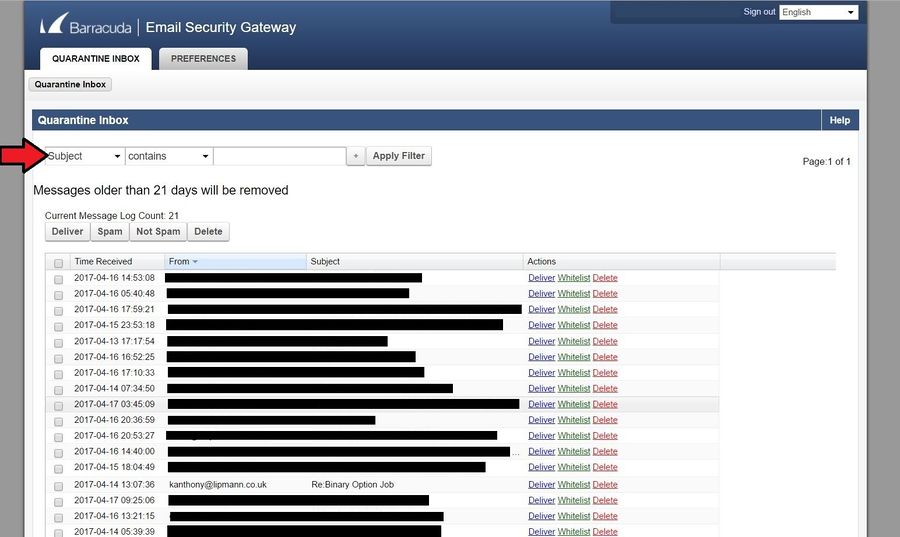
- There are three different filters, "from", "subject", and "message". "From" will allow you to search the emails based on who sent them. "Subject" will allow you to search based on the subject of emails. Message will allow you to search in the body of the email. To the right of the filter, you can either select "contains" or "doesn't contain". This will tell the filter to check if something contains the text you search for or doesn't contain the text you search for. For example if your filter is "subject" and you select "contains" and search for "binary" this will be the result.
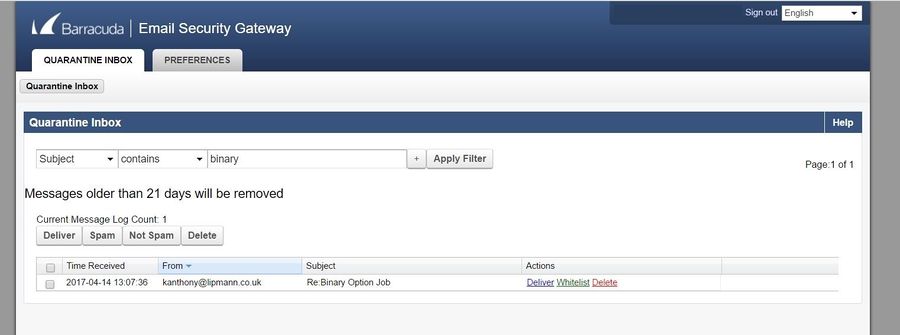
- If your filter is "subject" and you select "doesn't contain" "binary", all of the emails that don't have "binary" in the subject will be shown.

