Microsoft Office Activation: Difference between revisions
No edit summary |
|||
| Line 16: | Line 16: | ||
# Search for Command Prompt in the Start menu, right click it, and choose "Run as administrator". | # Search for Command Prompt in the Start menu, right click it, and choose "Run as administrator". | ||
#: [[Image:Activating_Office_Update_1.jpg]] | #: [[Image:Activating_Office_Update_1.jpg|alt='Command Prompt' is searched in the Start Menu.]] | ||
# Run the following command to determine the bitness of your operating system. This will help you determine which commands you need to run as you continue: | # Run the following command to determine the bitness of your operating system. This will help you determine which commands you need to run as you continue: | ||
#: <pre>wmic os get osarchitecture</pre> | #: <pre>wmic os get osarchitecture</pre> | ||
#: [[Image:Activating_Office_Update_2.jpg]] | #: [[Image:Activating_Office_Update_2.jpg|alt=The Windows Command Prompt is shown with the command 'wmic os get osarchitecture' entered and its results shown.]] | ||
# The path entered for the rest of the commands will differ slightly depending on the bitness of your operating system and your version and bitness of Office. See [https://support.microsoft.com/en-us/office/about-office-what-version-of-office-am-i-using-932788b8-a3ce-44bf-bb09-e334518b8b19?ui=en-us&rs=en-us&ad=us here] for how to check Office version and bitness. '''The remaining instructions assume Office 2016 (or newer) 64-bit on Windows 64-bit.''' | # The path entered for the rest of the commands will differ slightly depending on the bitness of your operating system and your version and bitness of Office. See [https://support.microsoft.com/en-us/office/about-office-what-version-of-office-am-i-using-932788b8-a3ce-44bf-bb09-e334518b8b19?ui=en-us&rs=en-us&ad=us here] for how to check Office version and bitness. '''The remaining instructions assume Office 2016 (or newer) 64-bit on Windows 64-bit.''' | ||
#* 64-bit Office, 64-bit Windows: <code>"C:\Program Files\Microsoft Office\Office16\OSPP.VBS"</code> | #* 64-bit Office, 64-bit Windows: <code>"C:\Program Files\Microsoft Office\Office16\OSPP.VBS"</code> | ||
| Line 26: | Line 26: | ||
# Set the correct KMS server. | # Set the correct KMS server. | ||
#: <code>cscript "C:\Program Files\Microsoft Office\Office16\OSPP.VBS" /sethst:kms.umd.edu</code> | #: <code>cscript "C:\Program Files\Microsoft Office\Office16\OSPP.VBS" /sethst:kms.umd.edu</code> | ||
#: [[Image:Activating_Office_Update_3.jpg]] | #: [[Image:Activating_Office_Update_3.jpg|alt=The Windows Command Prompt is shown with the command 'cscript "C:\Program Files\Microsoft Office\Office16\OSPP.VBS" /sethst:kms.umd.edu' entered and its results shown.]] | ||
# Force an activation against the KMS server. | # Force an activation against the KMS server. | ||
#: <code>cscript "C:\Program Files\Microsoft Office\Office16\OSPP.VBS" /act</code> | #: <code>cscript "C:\Program Files\Microsoft Office\Office16\OSPP.VBS" /act</code> | ||
#: [[Image:Activating_Office_Update_4.jpg]] | #: [[Image:Activating_Office_Update_4.jpg|alt=The Windows Command Prompt is shown with the command 'cscript "C:\Program Files\Microsoft Office\Office16\OSPP.VBS" /act' entered and its results shown.]] | ||
# Check the licensing status. | # Check the licensing status. | ||
#: <code>cscript "C:\Program Files\Microsoft Office\Office16\OSPP.VBS" /dstatus</code> | #: <code>cscript "C:\Program Files\Microsoft Office\Office16\OSPP.VBS" /dstatus</code> | ||
#* This example shows 1 license, being the standard Office installation. | #* This example shows 1 license, being the standard Office installation. | ||
#: [[Image:Activating_Office_Update_5.jpg]] | #: [[Image:Activating_Office_Update_5.jpg|alt=The Windows Command Prompt is shown with the command 'cscript "C:\Program Files\Microsoft Office\Office16\OSPP.VBS" /dstatus' entered and its results shown.]] | ||
Revision as of 14:24, 3 April 2026
This article is about how to manually force Microsoft Office to activate and obtain a license from the university KMS server.
When do I need to do this?
Most users will not need to do this in order to use Microsoft Office. The only time this needs to be done is if Office is installed on a host that goes an extended length of time (180 days or more) without connecting to the campus network (either physically or through a VPN) and needs to be activated in a hurry.
How to Activate Office
Please note that you need to be connected to either the wired campus network, campus WiFi, or the campus VPN to activate. The below steps will assume you have already established a network connection. Please also note that your time must be correct (i.e., set via the Internet) and set to the US Eastern timezone for this to work. You can try running w32tm /resync on the command line below in step 4 before running the other commands listed in that step and subsequent ones to resync your time if the commands fail at first.
Once you are on the campus network follow these instructions:
Simple Activation Method
Open any Office product (Word, PowerPoint, etc.). This should automatically activate Office. If it fails to activate, follow the instructions below:
Command Line Activation Method
Please note that your time must be correct for this to work; make sure you are in the US Eastern timezone and your time is set via the internet. If your time is not correct, try running "w32tm /resync" on the command line.
- Search for Command Prompt in the Start menu, right click it, and choose "Run as administrator".
- Run the following command to determine the bitness of your operating system. This will help you determine which commands you need to run as you continue:
wmic os get osarchitecture

- The path entered for the rest of the commands will differ slightly depending on the bitness of your operating system and your version and bitness of Office. See here for how to check Office version and bitness. The remaining instructions assume Office 2016 (or newer) 64-bit on Windows 64-bit.
- 64-bit Office, 64-bit Windows:
"C:\Program Files\Microsoft Office\Office16\OSPP.VBS" - 32-bit Office, 64-bit Windows:
"C:\Program Files (x86)\Microsoft Office\Office16\OSPP.VBS" - 32-bit Office, 32-bit Windows:
"C:\Program Files\Microsoft Office\Office16\OSPP.VBS"
- 64-bit Office, 64-bit Windows:
- Set the correct KMS server.
cscript "C:\Program Files\Microsoft Office\Office16\OSPP.VBS" /sethst:kms.umd.edu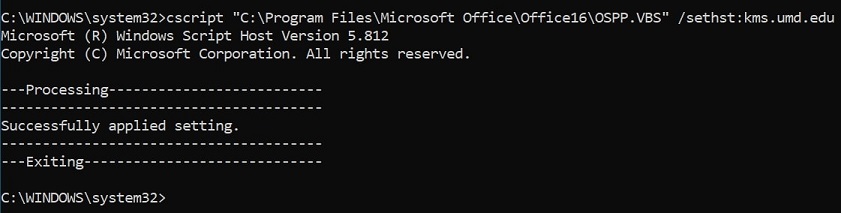
- Force an activation against the KMS server.
cscript "C:\Program Files\Microsoft Office\Office16\OSPP.VBS" /act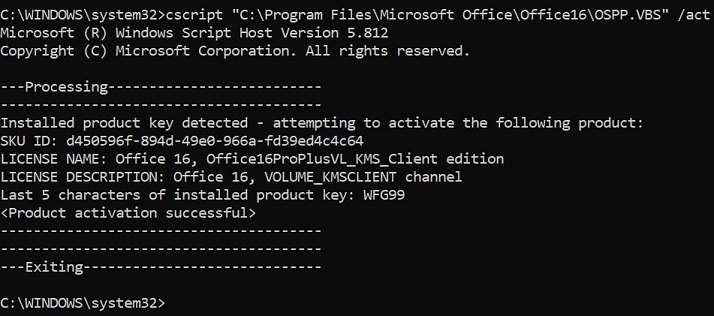
- Check the licensing status.
cscript "C:\Program Files\Microsoft Office\Office16\OSPP.VBS" /dstatus
- This example shows 1 license, being the standard Office installation.


