Windows Activation: Difference between revisions
| Line 41: | Line 41: | ||
#: [[File:Changepk_pro.png]] | #: [[File:Changepk_pro.png]] | ||
# Wait a few seconds, and Windows should reboot automatically. During the reboot, the Windows components required for the Pro/Enterprise Editions will be added. | # Wait a few seconds, and Windows should reboot automatically. During the reboot, the Windows components required for the Pro/Enterprise Editions will be added. | ||
# Log back in and attempt the main activation steps again. | # Log back in and attempt the [[#Activation | main activation steps]] again. | ||
Revision as of 18:04, 10 March 2026
Windows Licensing
Windows uses an activation model for each UMD-licensed install, with verification and renewal every 180 days. Activation and renewal is performed via the campus Key Management Server KMS, which is not available from off campus. For on-campus desktops, this is not a problem. However, for laptops or off-campus desktops it poses a complication. As long as the laptop or off-campus desktop is periodically connected the campus wireless or campus VPN, renewal activation should be performed automatically.
You must use the below procedure only on University-owned hardware.
Please follow the below steps if you are receiving a message that your license is going to expire soon or that Windows is not activated, or if you need to change the edition of the OS from any non-Enterprise edition to Enterprise.
Activation
Please note that you need to be connected to the wired campus network, campus WiFi, or the campus VPN to activate. The below steps assume you have already established a network connection. Please also note that your time must be correct (i.e. set via the Internet) and set to the US Eastern timezone for this to work. You can try running w32tm /resync on the command line below in step 4 before running the other commands listed in that step to resync your time if the commands fail at first.
- Click on the Start menu and type "cmd" in the run bar.
- Right-Click on the cmd button, and select "Run as Administrator" - THIS IS VERY IMPORTANT!
- If this is a device that UMIACS technical staff installed for you, you will need to use Make Me Admin before attempting to run cmd as an administrator for this to succeed.
- Select "Yes" if you get a prompt to allow the following program to make changes.
- If this is a device that UMIACS technical staff installed for you, and you just granted yourself admin privileges with Make Me Admin, you will need to enter your UMD directory ID and passphrase at this point.
- From the Command Prompt, run these commands in order:
cscript c:\windows\system32\slmgr.vbs -skms kms.umd.edu:1688
cscript c:\windows\system32\slmgr.vbs -ipk NPPR9-FWDCX-D2C8J-H872K-2YT43
cscript c:\windows\system32\slmgr.vbs -ato
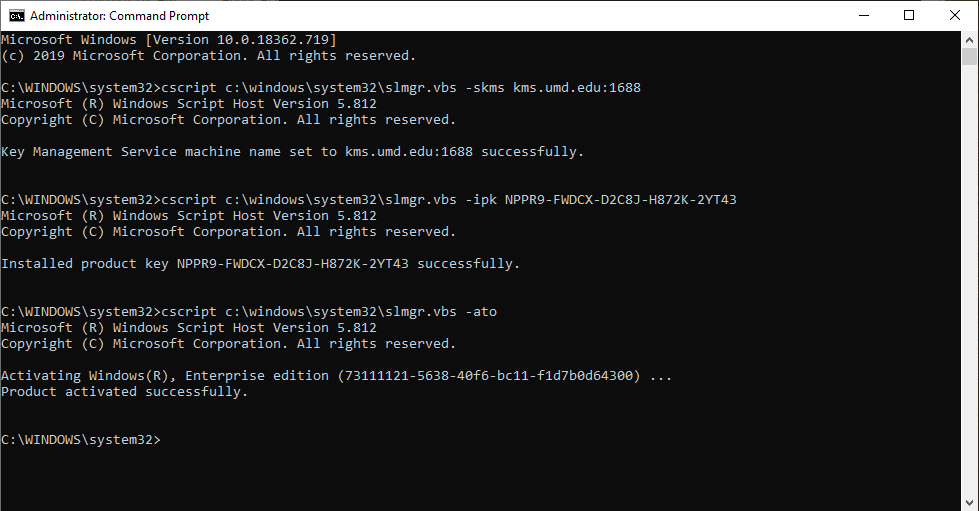
- If you get an error after running the command with
-ipkin it, see the below #0xC004F069_Error section.
- If you get an error after running the command with
- After these commands have run, the Key Management Server should have activated your Windows computer for 180 days. You can run:
cscript c:\windows\system32\slmgr.vbs -xpr
to confirm this.


If you are unable to activate, please see the message at the top of this section. If you are still unable to activate, and the computer you are attempting to activate is owned by the Institute for Advanced Computer Studies, please contact UMIACS staff with information about your problem. Otherwise, please contact the Division of IT.
0xC004F069 Error
If you receive the following error during activation, the most likely cause is that you are running Windows 11 Home Edition and are trying to go directly to Windows 11 Enterprise Edition, which has been observed to no longer work in newer feature releases of Windows 11.

The following steps can be used to work around this:
- In the same Command Prompt window you had open from step 4 above, use changepk.exe instead of the previous command to attempt to activate the Enterprise product key.
changepk.exe /productkey NPPR9-FWDCX-D2C8J-H872K-2YT43

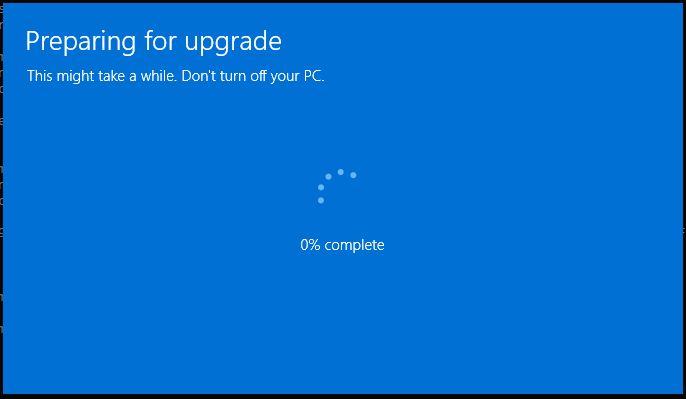
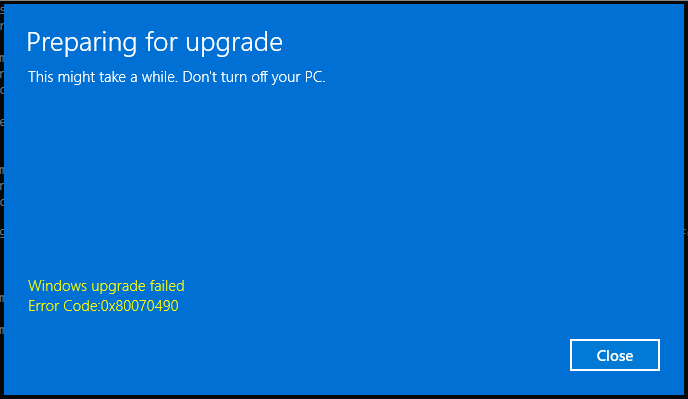
- Wait while the Preparing for upgrade window progresses. It will eventually fail after reaching 100%. Close the window.
 ->
-> 
- In Command Prompt again, use changepk.exe to activate the Pro product key.
changepk.exe /productkey W269N-WFGWX-YVC9B-4J6C9-T83GX

- Wait a few seconds, and Windows should reboot automatically. During the reboot, the Windows components required for the Pro/Enterprise Editions will be added.
- Log back in and attempt the main activation steps again.


