Iribe/ConferenceRooms/Reserve: Difference between revisions
Jump to navigation
Jump to search
No edit summary |
|||
| Line 2: | Line 2: | ||
== Steps == | == Steps == | ||
# Navigate to https://calendar.google.com. <br> [[File:GoogleCalendar_Initial.png|border|775px]] <br><br> | # Navigate to https://calendar.google.com. <br> [[File:GoogleCalendar_Initial.png|border|775px|alt=Screenshot of Google Calendar homepage]] <br><br> | ||
# Ensure that you are logged into your UMD account. Only these accounts can schedule rooms. Terpmail accounts will not work; it must be just your @umd.edu email address account. Switch or add an account if not: Google has instructions [https://support.google.com/docs/answer/2405894?co=GENIE.Platform%3DDesktop&hl=en here]. When adding an account you will be prompted by Google for your email/phone. This is your UMD username that you use to log into the UMD Central Authentication System (CAS) appended with <code>@umd.edu</code>. For example <code>username@umd.edu</code>. You will then be redirected to the UMD CAS login page if you don't have a current session open.<br> [[File:GoogleCalendar_AccountSelector.png|border|775px]] <br><br> | # Ensure that you are logged into your UMD account. Only these accounts can schedule rooms. Terpmail accounts will not work; it must be just your @umd.edu email address account. Switch or add an account if not: Google has instructions [https://support.google.com/docs/answer/2405894?co=GENIE.Platform%3DDesktop&hl=en here]. When adding an account you will be prompted by Google for your email/phone. This is your UMD username that you use to log into the UMD Central Authentication System (CAS) appended with <code>@umd.edu</code>. For example <code>username@umd.edu</code>. You will then be redirected to the UMD CAS login page if you don't have a current session open.<br> [[File:GoogleCalendar_AccountSelector.png|border|775px|alt=Screenshot of Google Calendar Homepage after clicking the Google Account icon, displaying current account information]] <br><br> | ||
# Click "Create" to start adding event details.<br> [[File:GoogleCalendar_CreateEvent_2024.png|border|775px]] <br><br> | # Click "Create" to start adding event details.<br> [[File:GoogleCalendar_CreateEvent_2024.png|border|775px|alt=Screenshot of Google Calendar pop-up for creating an event]] <br><br> | ||
# Search for the room you wish to schedule by clicking the "Rooms" tab on the right. Rooms are of the form "IRB XXXX". Note: You can search available rooms only or all rooms. Rooms that appear with strikethough text are not available to reserve at the time(s) you have chosen.<br> [[File:GoogleCalendar_EventDetails_2024.png|border|775px]] <br><br> | # Search for the room you wish to schedule by clicking the "Rooms" tab on the right. Rooms are of the form "IRB XXXX". Note: You can search available rooms only or all rooms. Rooms that appear with strikethough text are not available to reserve at the time(s) you have chosen.<br> [[File:GoogleCalendar_EventDetails_2024.png|border|775px|alt=Screenshot of Google Calendar pop-up of creating an event with the room/location dropdown open]] <br><br> | ||
# Select a room and finish filling out your event details. <br> [[File:GoogleCalendar_Event_detailsFinished.png|border|775px]] <br><br> | # Select a room and finish filling out your event details. <br> [[File:GoogleCalendar_Event_detailsFinished.png|border|775px|alt=Screenshot of an example calendar event's information fully filled out in the 'Create' pop-up window]] <br><br> | ||
# Hit "Save" and your reservation will be created. <br> [[File:GoogleCalendar_Created.png|border|775px]] | # Hit "Save" and your reservation will be created. <br> [[File:GoogleCalendar_Created.png|border|775px|alt=Screenshot of Google Calendar 'Calendar' view with the example event displayed]] | ||
#* If this is a [[Iribe/ConferenceRooms/Moderated | moderated room]], an email for approval will be sent to the moderator(s) at this point. '''Your reservation is not valid until one of the moderators for the room approves.''' | #* If this is a [[Iribe/ConferenceRooms/Moderated | moderated room]], an email for approval will be sent to the moderator(s) at this point. '''Your reservation is not valid until one of the moderators for the room approves.''' | ||
#* If this is an [[Iribe/ConferenceRooms/AutoAccept | auto-accept room]], your reservation is valid immediately. | #* If this is an [[Iribe/ConferenceRooms/AutoAccept | auto-accept room]], your reservation is valid immediately. | ||
Latest revision as of 20:44, 30 March 2026
This page will show you how to reserve Iribe conference rooms through Google Calendar. Most all the steps will generally be the same for moderated and auto-accept rooms with the former requiring an additional step at the end for moderation to happen.
Steps
- Navigate to https://calendar.google.com.
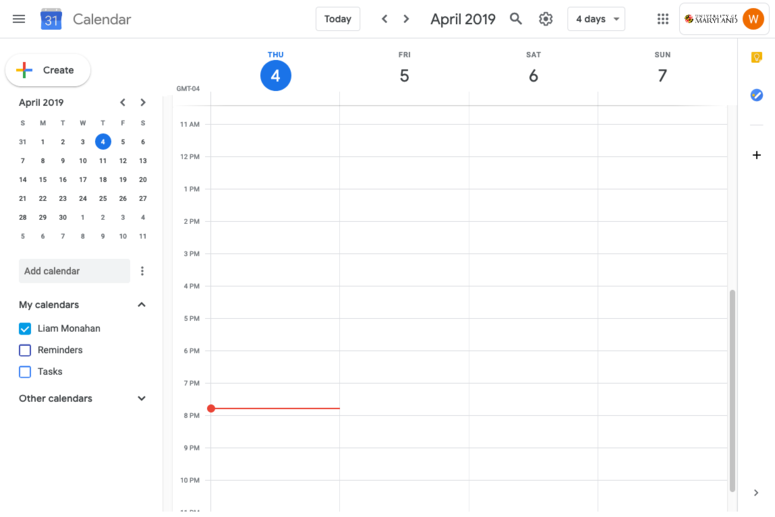
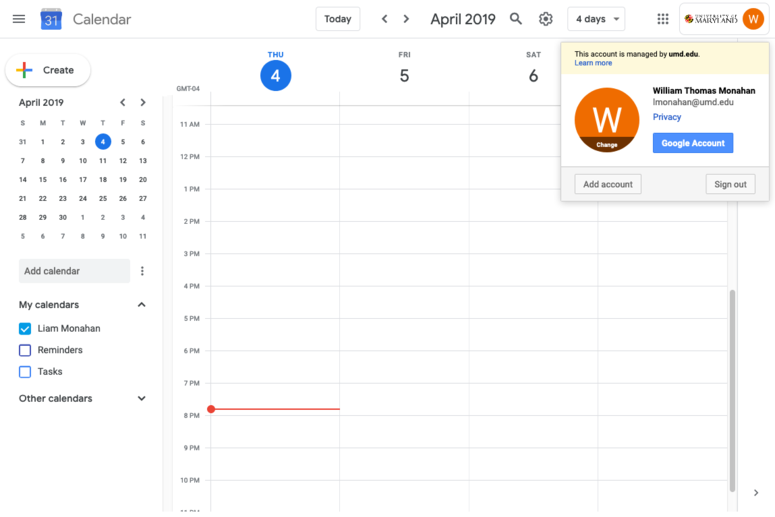
- Ensure that you are logged into your UMD account. Only these accounts can schedule rooms. Terpmail accounts will not work; it must be just your @umd.edu email address account. Switch or add an account if not: Google has instructions here. When adding an account you will be prompted by Google for your email/phone. This is your UMD username that you use to log into the UMD Central Authentication System (CAS) appended with
@umd.edu. For exampleusername@umd.edu. You will then be redirected to the UMD CAS login page if you don't have a current session open.
- Click "Create" to start adding event details.
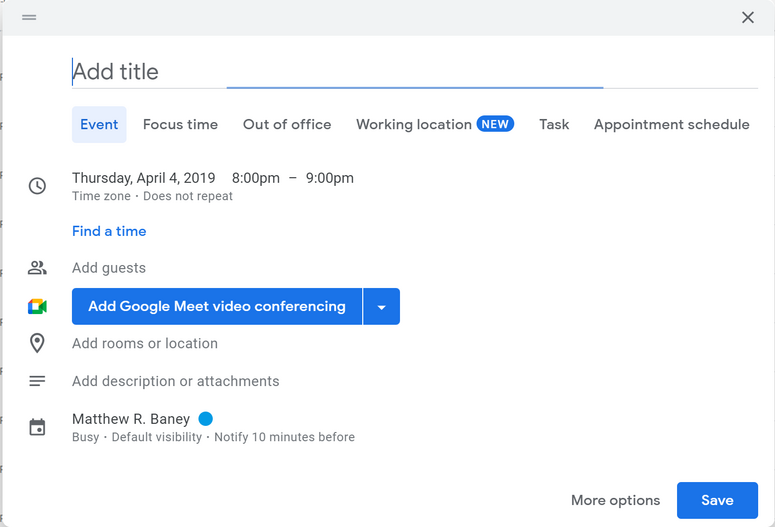
- Search for the room you wish to schedule by clicking the "Rooms" tab on the right. Rooms are of the form "IRB XXXX". Note: You can search available rooms only or all rooms. Rooms that appear with strikethough text are not available to reserve at the time(s) you have chosen.
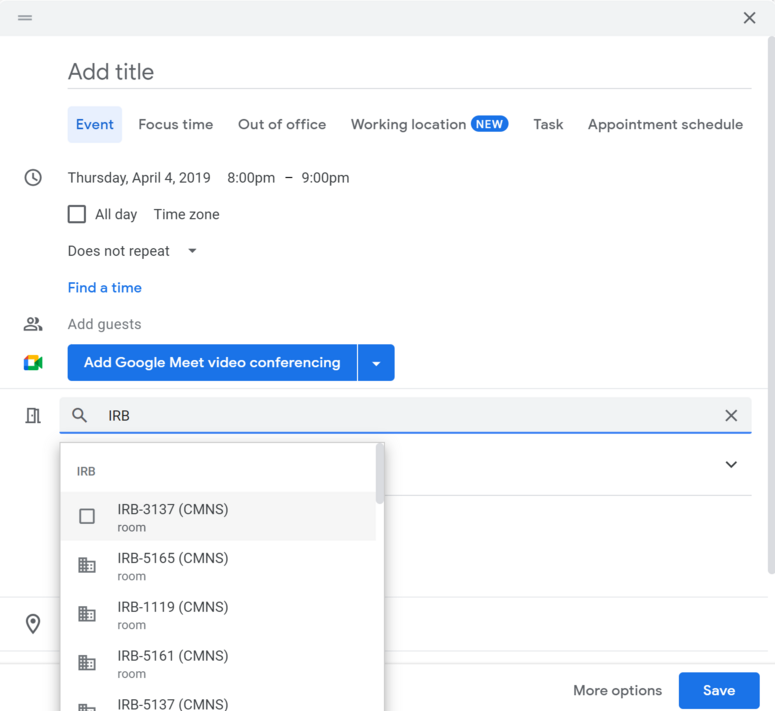
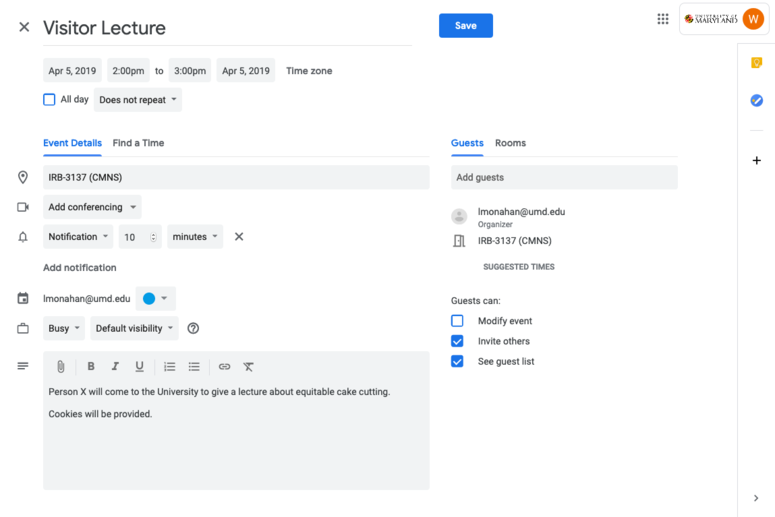
- Select a room and finish filling out your event details.
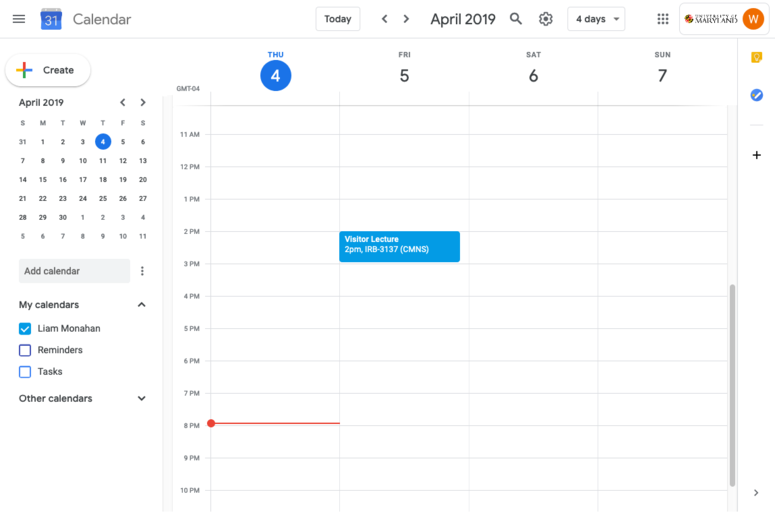
- Hit "Save" and your reservation will be created.
- If this is a moderated room, an email for approval will be sent to the moderator(s) at this point. Your reservation is not valid until one of the moderators for the room approves.
- If this is an auto-accept room, your reservation is valid immediately.


